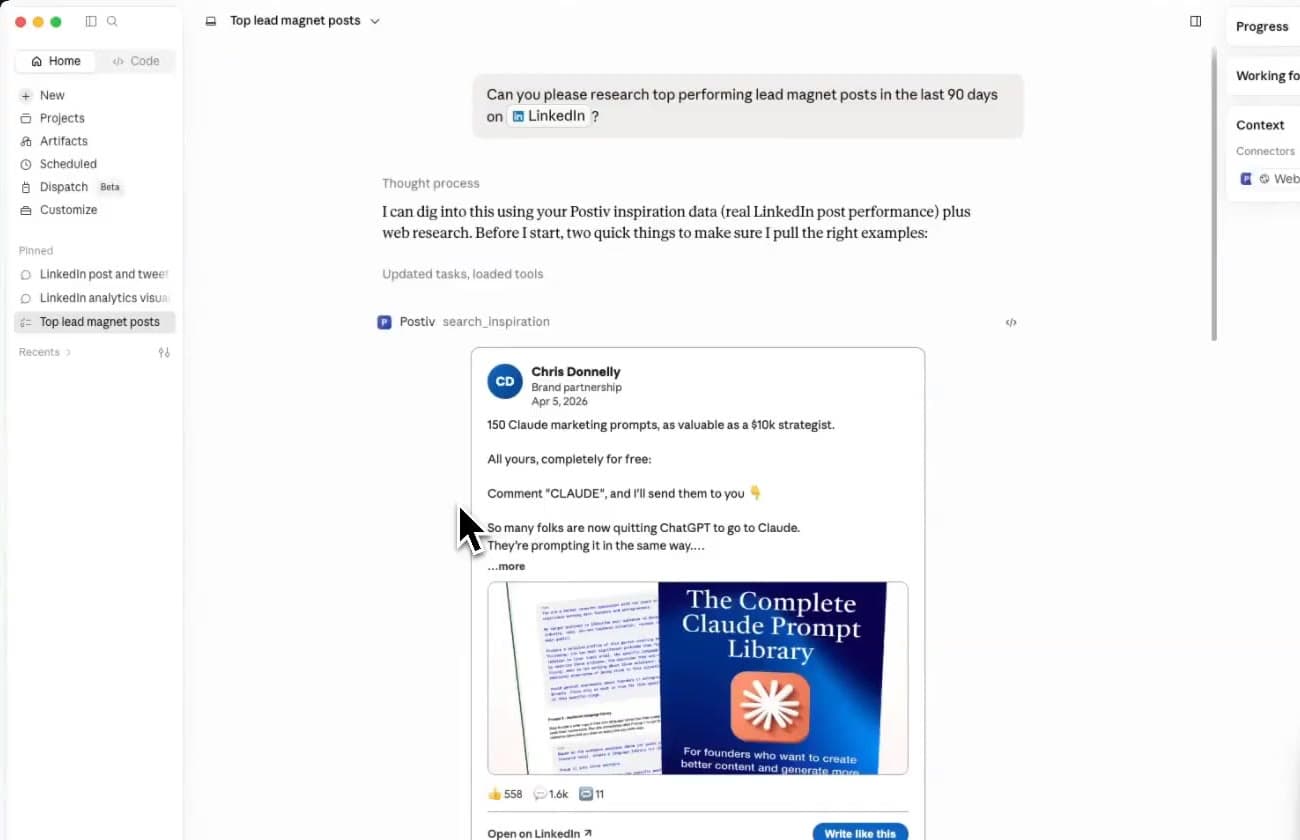
Research
Find patterns in posts that perform
Ask Claude to search Postiv's inspiration library, group winning hooks and formats, and turn the patterns into original ideas.
A LinkedIn MCP server is a secure connector that gives Claude and other AI agents a defined set of LinkedIn capabilities. Postiv lets your agent research, create, design, schedule, and analyze content without controlling linkedin.com through a browser.
Works with
Connected through Postiv
Your assistant works with your brand knowledge, profiles, and content.
search_knowledgecreate_postWe built this because the best ideas shouldn’t get stuck in a notes app.
By Postiv · Updated
Watch the complete connection process, then see Claude research successful posts, create content, and analyze LinkedIn performance inside one conversation.
Research
Ask Claude to search Postiv's inspiration library, group winning hooks and formats, and turn the patterns into original ideas.
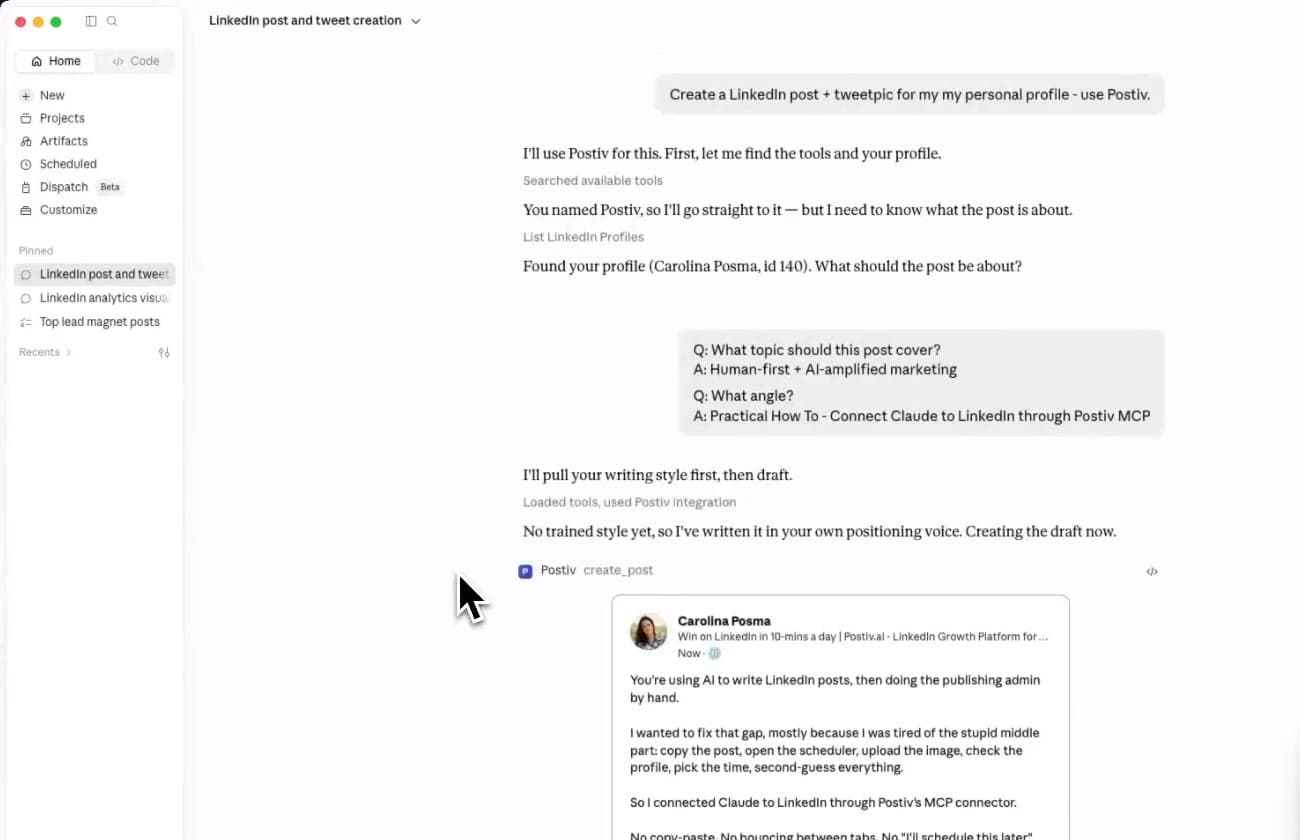
Create
Create a post in the correct Postiv workspace, refine it in Claude, then open the saved draft for visual review.
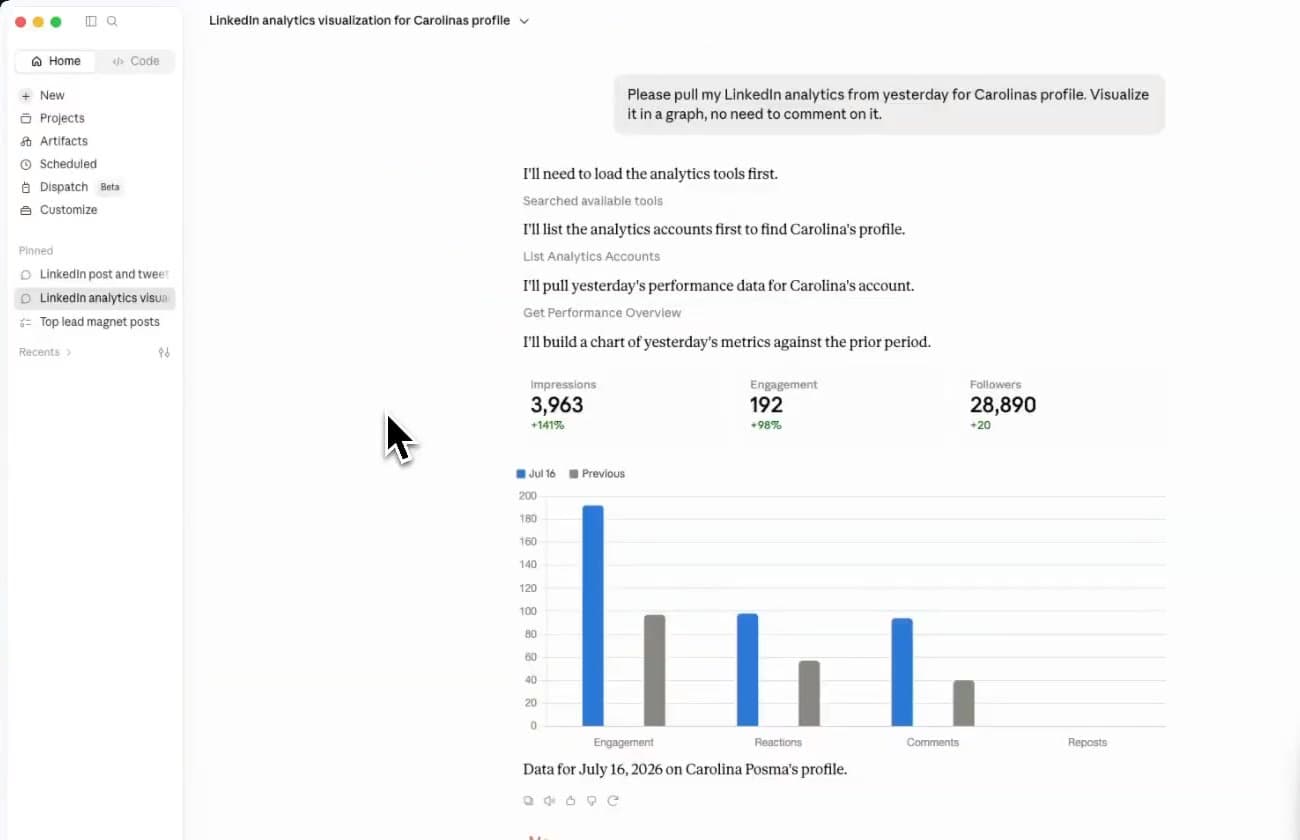
Analyze
Pull cached LinkedIn metrics into Claude, compare periods, and identify the content experiments worth testing next.
Many tools use the phrase LinkedIn MCP for different jobs. Postiv is designed for content teams that want controlled research, creation, visuals, scheduling, and analytics. It does not automate DMs or connection requests.
| Capability | Postiv MCP | Scraper MCP | Analytics connector |
|---|---|---|---|
| Research content inspiration | Yes | Varies | Usually no |
| Create grounded LinkedIn posts | Yes | Varies | Usually no |
| Generate images and carousels | Yes | Usually no | No |
| Schedule and reschedule posts | Yes | Varies | Usually no |
| Respect human approval rules | Yes | Varies | No |
| Analyze content performance | Yes | Varies | Yes |
| Automate DMs or connection requests | No | Often | No |
Sign in with your Postiv account and approve the workspace your assistant can use. Choose Claude or ChatGPT below for the direct setup link and connection details.
Choose the personal profile or Company Page that Claude should work with. Postiv remains the controlled content layer.
Open the Claude or ChatGPT setup link below. Add https://postiv.ai/mcp and use the public OAuth client details.
Sign in to Postiv, choose a workspace, and approve access. Ask your assistant to confirm the workspace before creating content.
https://postiv.ai/mcpSign in, choose a workspace, and approve access. No organization API key is needed for Claude or ChatGPT.
Add a custom connector, then sign in with your Postiv account.
Open Claude connectors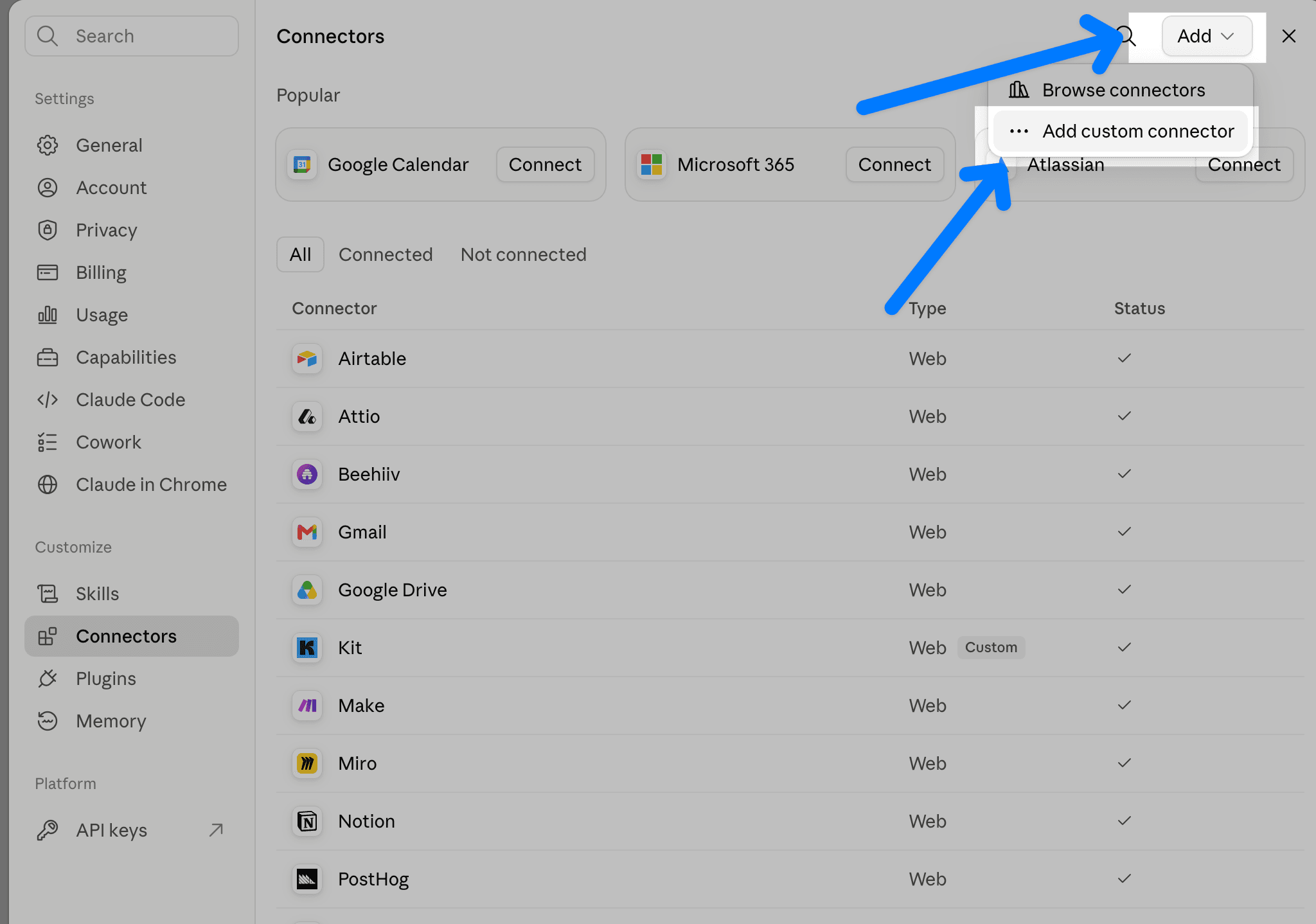
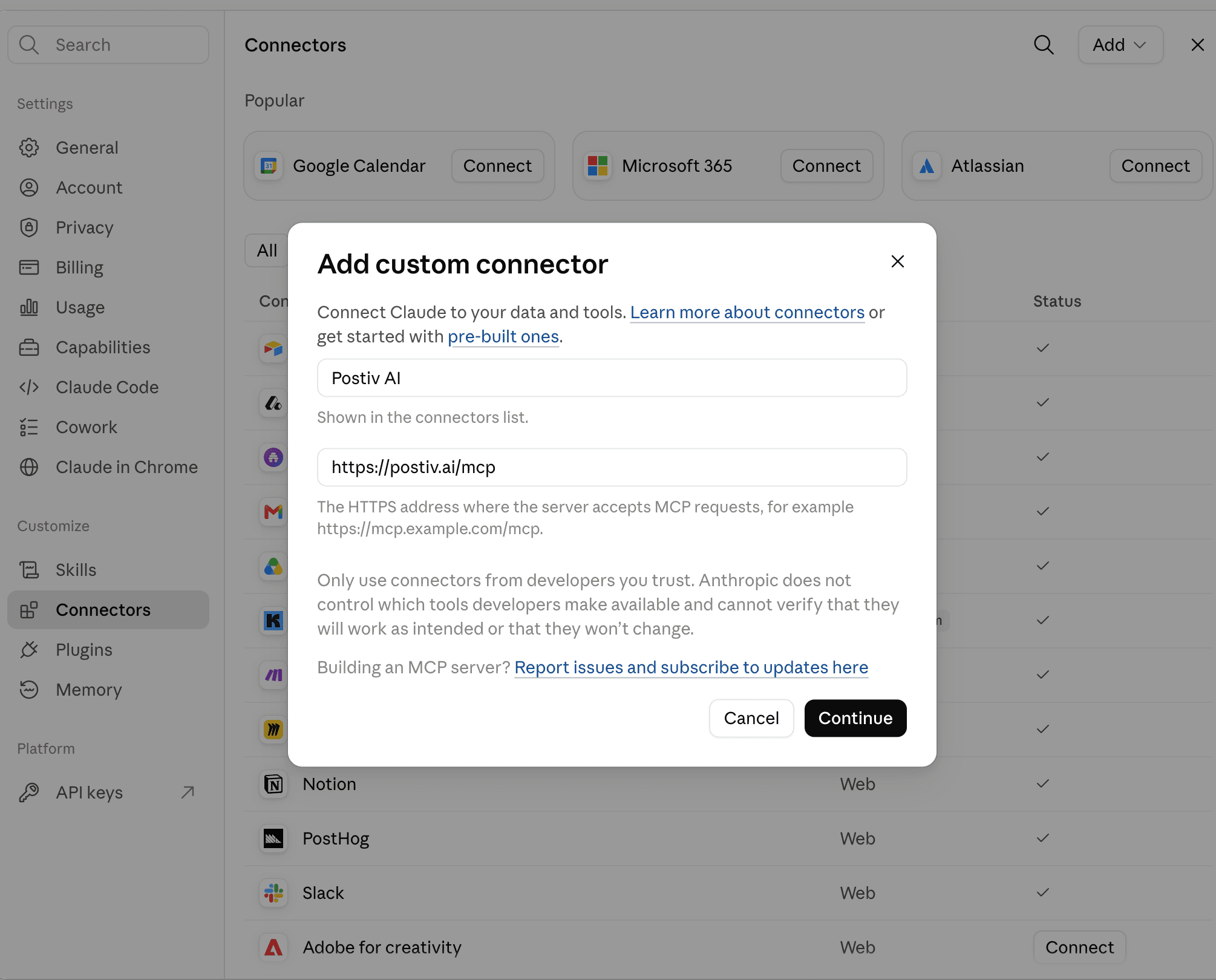
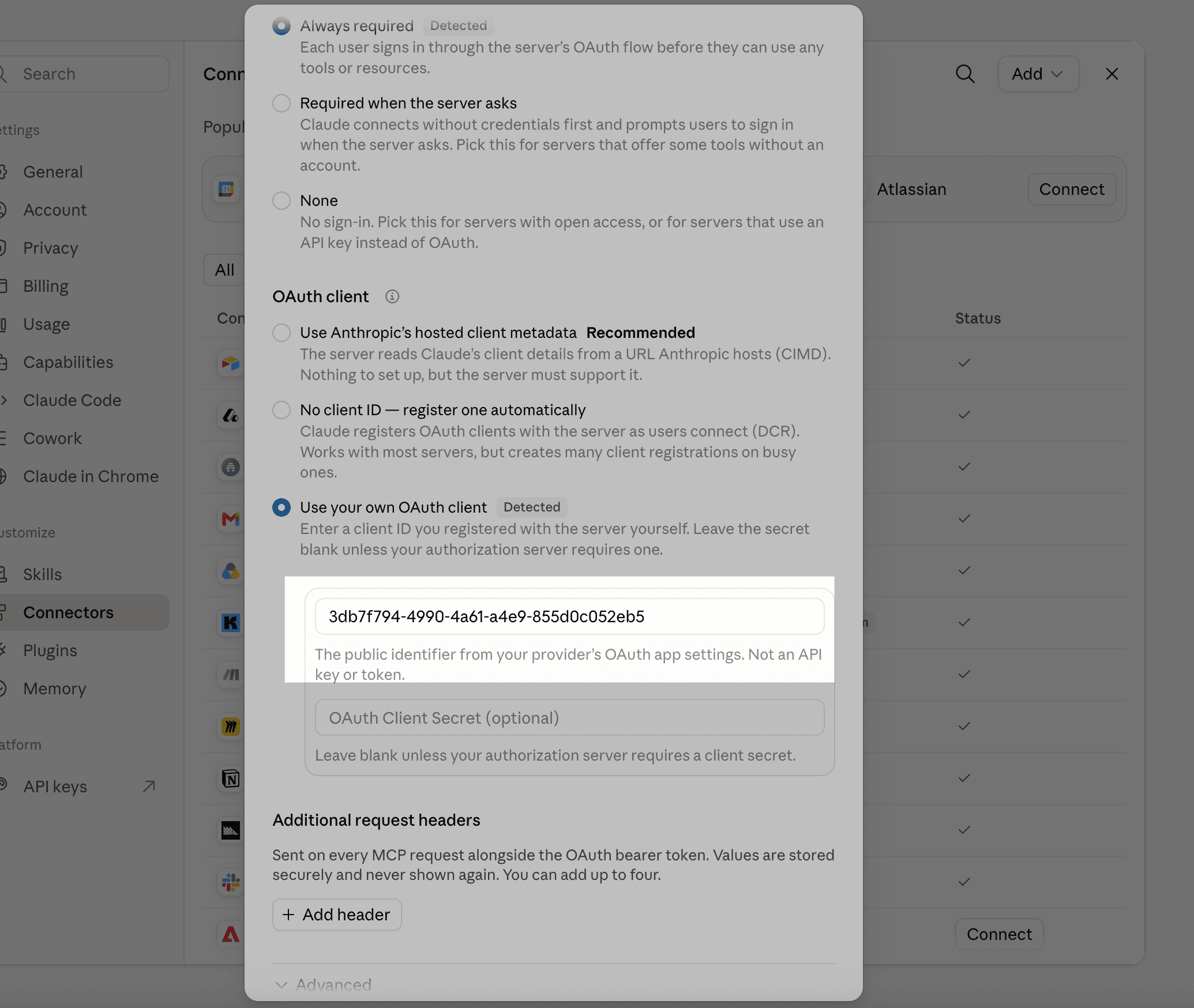
MCP server URL
https://postiv.ai/mcpOAuth client ID
3db7f794-4990-4a61-a4e9-855d0c052eb5The client ID is a public setup value. Leave the client secret empty.
If your Claude version shows Advanced settings instead of a second setup step, enter the same client ID there and leave the secret empty. If Postiv already exists, use that connector instead of adding a duplicate.
Read & write is selected by default for new connections and allows creating, editing, deleting, scheduling, and publishing content, plus approvals and engagement actions. Choose Read only if you only need research and reporting.
Your AI app refreshes access automatically while the authorization remains valid. If it asks you to sign in again, reconnect from its connector settings.
Existing connections keep their original permissions. To change workspace or access, revoke the connection in Postiv and reconnect. Claude and ChatGPT currently share the Postiv MCP authorization, so revoking it can disconnect both.
Using Claude Code, Cursor, Codex, or an existing API-key connection? Follow the API-key setup guide. The full tool reference lists available actions and permissions.
Start with a read-only research request. Move to creation and scheduling only after you have confirmed the correct Postiv workspace and LinkedIn profile.
Find the strongest educational posts in my inspiration library from the last 90 days. Group them by hook type and format, then explain the patterns without copying the wording.
Show my top five LinkedIn posts from the last 90 days and explain the topics, structures, and calls to action they have in common.
Draft a LinkedIn post about [topic] using my workspace knowledge and normal voice. Ask me two clarifying questions before creating the draft.
Take my best-performing post from the last 90 days and propose three new angles. Keep the core insight, but do not reuse the original wording.
Turn the approved post into a five-slide LinkedIn carousel outline. Show me the slide copy first and wait for approval before rendering it.
List my approved, unscheduled drafts and recommend a balanced publishing order for next week. Do not schedule anything until I confirm the plan.
Your agent can create useful LinkedIn work with real workspace context, explicit actions, and one connected content system.
Confirm the connected workspace and available scopes before an agent takes action.
Save and retrieve real positioning, product facts, and brand knowledge instead of asking an agent to guess.
Search a moderated library of high-performing LinkedIn content before creating an original draft.
Choose the correct LinkedIn profile or Company Page and manage its automatic first comment.
Create, list, retrieve, and update saved LinkedIn posts through a controlled draft lifecycle.
Schedule, reschedule, and unschedule posts while respecting approvers configured on the target profile.
Create a branded image for a post, then iterate on it with plain-language instructions.
Turn a structured outline into a branded LinkedIn carousel and edit individual slides before publishing.
Read cached LinkedIn performance summaries, top posts, account trends, and post-level analytics.
Supported MCP hosts can render Postiv post editors, image previews, carousel pagers, and inspiration cards inline.
Postiv converts formatting into LinkedIn-safe text so published posts display as intended.
Scheduling always queues the post, and configured approval rules still apply before it can go live.
The MCP makes capabilities available to your agent. Your Postiv workspace, key scopes, target profile, and approval rules determine what happens next.
Choose the workspace and permissions during sign-in. New connections default to Read & write; Read only is also available.
Ask Claude to show the final copy, target profile, date, and time before it queues a post.
Posts still wait for approval when the selected LinkedIn profile has approvers configured.
Manage connected apps in Postiv to revoke an OAuth connection. Existing API-key connections can still be revoked by regenerating their key.
A LinkedIn MCP server is a connector that gives an AI assistant a defined set of LinkedIn-related capabilities. Postiv's hosted server focuses on content workflows such as research, drafting, visuals, scheduling, approvals, and analytics.
Yes. Claude can connect to Postiv's hosted LinkedIn MCP server. Postiv then gives Claude controlled access to the LinkedIn content workflows and connected profiles available in your Postiv workspace.
Claude can research inspiration, use workspace knowledge, create and edit posts, generate images and carousels, schedule approved content, and analyze cached LinkedIn performance data.
Postiv's schedule action queues a post instead of publishing it instantly. If the target profile has approvers configured, its existing approval workflow still applies. You can also instruct Claude to show the final post before scheduling.
No. Postiv's LinkedIn MCP is built for content research, creation, scheduling, and performance workflows. It is not designed for profile scraping, connection requests, or automated direct messages.
Yes. Claude Code can connect to the hosted MCP endpoint with an Authorization header. The exact command and authentication options are available in the hosted MCP documentation on Postiv.
Yes, provided the Company Page is connected to your Postiv workspace and your account has permission to manage it. Confirm the target profile before creating or scheduling content.
No. Sign in with your Postiv account, choose a workspace, and approve access. API keys remain available for the REST API, Claude Code, and other clients. Existing keys keep working.
The hosted endpoint is https://postiv.ai/mcp. Claude and ChatGPT connect through OAuth: sign in to Postiv, select your workspace, and approve access. Claude Code and other API-key clients can use an Authorization bearer header. You need a Postiv workspace and a connected LinkedIn profile or Company Page to work with its content.
Postiv supports Streamable HTTP MCP clients. ChatGPT on the web can connect through a custom MCP app where your plan, role, and workspace settings permit it. Cursor and other clients can use the hosted endpoint with API-key authentication. Client setup and support for interactive previews vary, so follow the configuration guide for your client.
Yes. Postiv exposes cached analytics for connected LinkedIn accounts, including performance summaries, top posts, account trends, and individual post analytics. Ask your assistant to compare a specific period and identify patterns in your best-performing posts. These are the metrics available in Postiv, not a live scrape of arbitrary LinkedIn profiles.
Postiv’s hosted MCP server is provided by Postiv, not by LinkedIn. It connects an MCP-compatible assistant to the content workflows and LinkedIn accounts in your Postiv workspace. Your approved workspace permissions determine the available access, and the target profile’s configured approval rules still apply to scheduling.
No. Postiv hosts the server, so you configure the endpoint in your assistant instead of cloning a repository or running a local server. You need a Postiv workspace and a compatible MCP client. Claude and ChatGPT use OAuth; other clients can use an organization API key. Check Postiv’s pricing page for current plans and your AI client’s requirements before connecting.
Connect your Postiv workspace, verify the right profile, and turn your next LinkedIn idea into an approved content workflow.