
Updated: October 2026
How to Schedule LinkedIn Posts in 2026 (3 Ways, Free + AI)
Quick answer: you can schedule LinkedIn posts for free with LinkedIn's built-in scheduler. Click Start a post, write your content, click the clock icon in the lower-right corner of the composer, pick a date and time between 10 minutes and 3 months out, click Confirm, then Schedule. It works on personal profiles and Company Pages. If you post several times a week, manage a Company Page next to your profile, or post with a team, a content calendar or your AI assistant saves you a lot of clicking. This guide covers all three ways.
Jump to LinkedIn's built-in scheduler at 0:37, scheduling with Postiv at 1:29, or scheduling from Claude at 3:08.
Why schedule LinkedIn posts at all
Consistency is the whole game on LinkedIn. Posting once a week, once a month or, like most people, once a quarter does not compound. But you also don't want to live on LinkedIn all day.
Jan van Musscher, co-founder of Postiv, grew to more than 20,000 followers and 650,000 impressions in 365 days. His number one reason:
I never post when I feel like it. I batch schedule my posts on Monday, and when I get a burst of inspiration during the week, I add it to the calendar.
That is what scheduling gives you. You write when you have the energy, and your posts go out when your audience is online: in a meeting, on a client trip or on a week off.
Way 1: LinkedIn's built-in scheduler (free)
LinkedIn added native scheduling in 2023. It works the same on desktop and mobile, and it costs nothing.
Desktop:
- Click Start a post at the top of your LinkedIn homepage.
- Write your post in the composer.
- Click the clock icon in the lower-right corner of the pop-up window.
- In the Schedule post window, pick a date and time. LinkedIn accepts anything from 10 minutes to 3 months from now, in 30-minute increments, or you can type an exact time.
- Click Confirm.
- Back in the composer, click Schedule.
Mobile:
- Tap Post in the navigation bar.
- Type your content in the Share post window.
- Tap the clock icon in the upper-right corner.
- Choose a date and time (the same 10 minutes to 3 months window).
- Confirm the time, then tap Schedule.
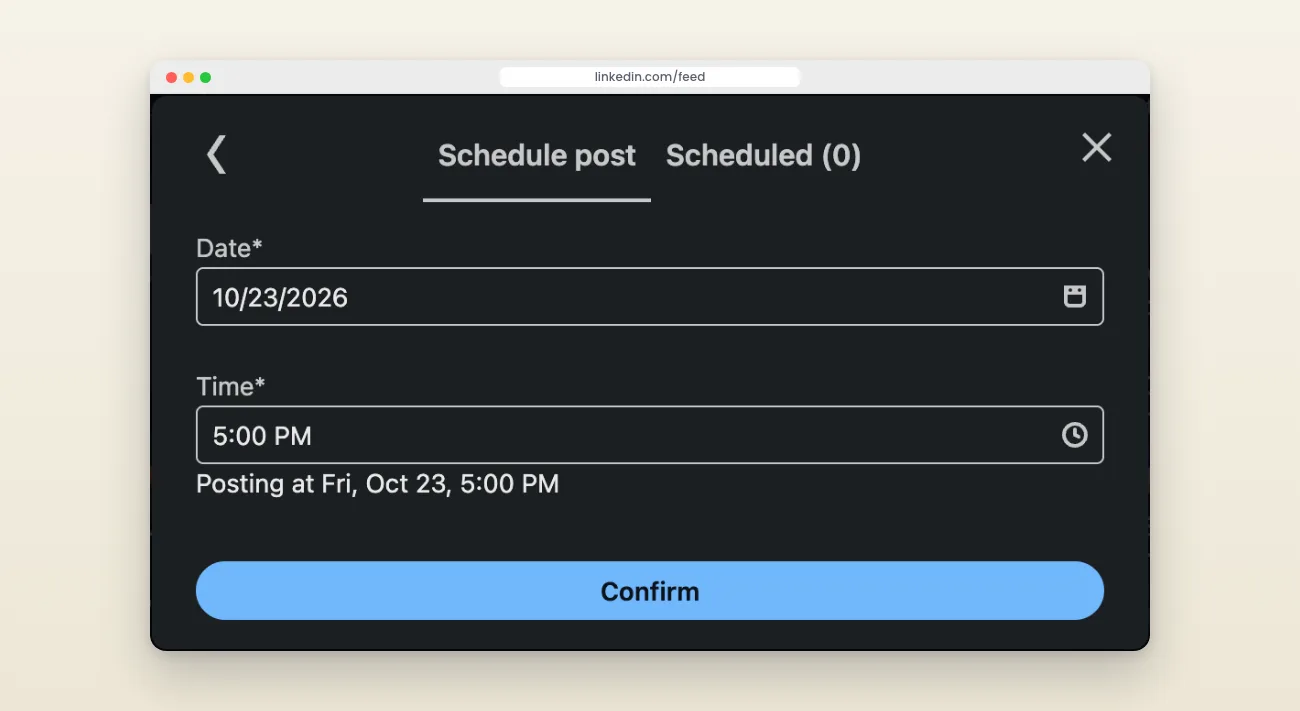
LinkedIn's built-in scheduler: pick a date and time, then confirm.
Time zones: LinkedIn uses your device's local time zone. If you schedule while traveling, double-check the time in the preview before you confirm.
Scheduling on a LinkedIn Company Page
Scheduling for a Company Page uses the same clock icon, but only super admins and content admins can do it, and the minimum lead time is longer.
- Go to your Page's super admin or content admin view.
- Click Page posts in the left menu.
- Click Start a post and write your content.
- Click the clock icon in the lower-right corner.
- Pick a date and time. Company Page posts can be scheduled from 1 hour to 3 months ahead (personal profiles: from 10 minutes).
- Click Confirm, then Schedule.
What a Page can't schedule: events, multiple photos in one post, reshares, polls, jobs and service posts. Text, single-image, video, document (carousel) and article posts schedule fine. A scheduled Page post also can't be promoted through Campaign Manager's Browse existing content until it has published.
The catch: your scheduled post disappears
Once you click Schedule, the post is gone from view. There is no calendar, so you can't see your week at a glance, and nobody on your team can see what you have queued. To find it again:
- Click Start a post, then the clock icon in the composer.
- Open the Scheduled tab next to Schedule post. It lists every post you have queued.
- Pick a post to edit it, change its time or delete it.
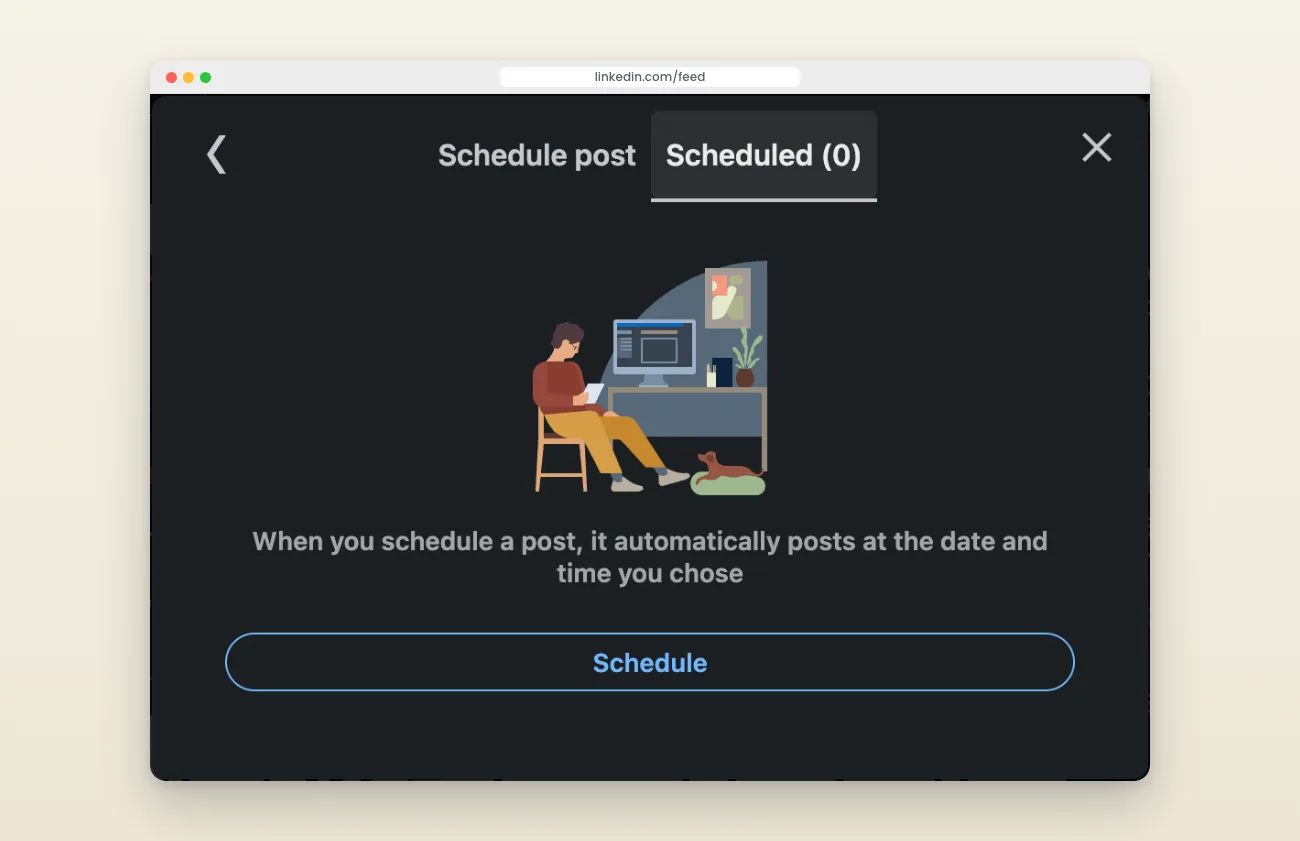
Scheduled posts live in a tab inside the composer, out of sight.
For one post a week on one profile, that is fine. For anything more, it gets in the way.
Way 2: a content calendar for your profile, Company Page and team
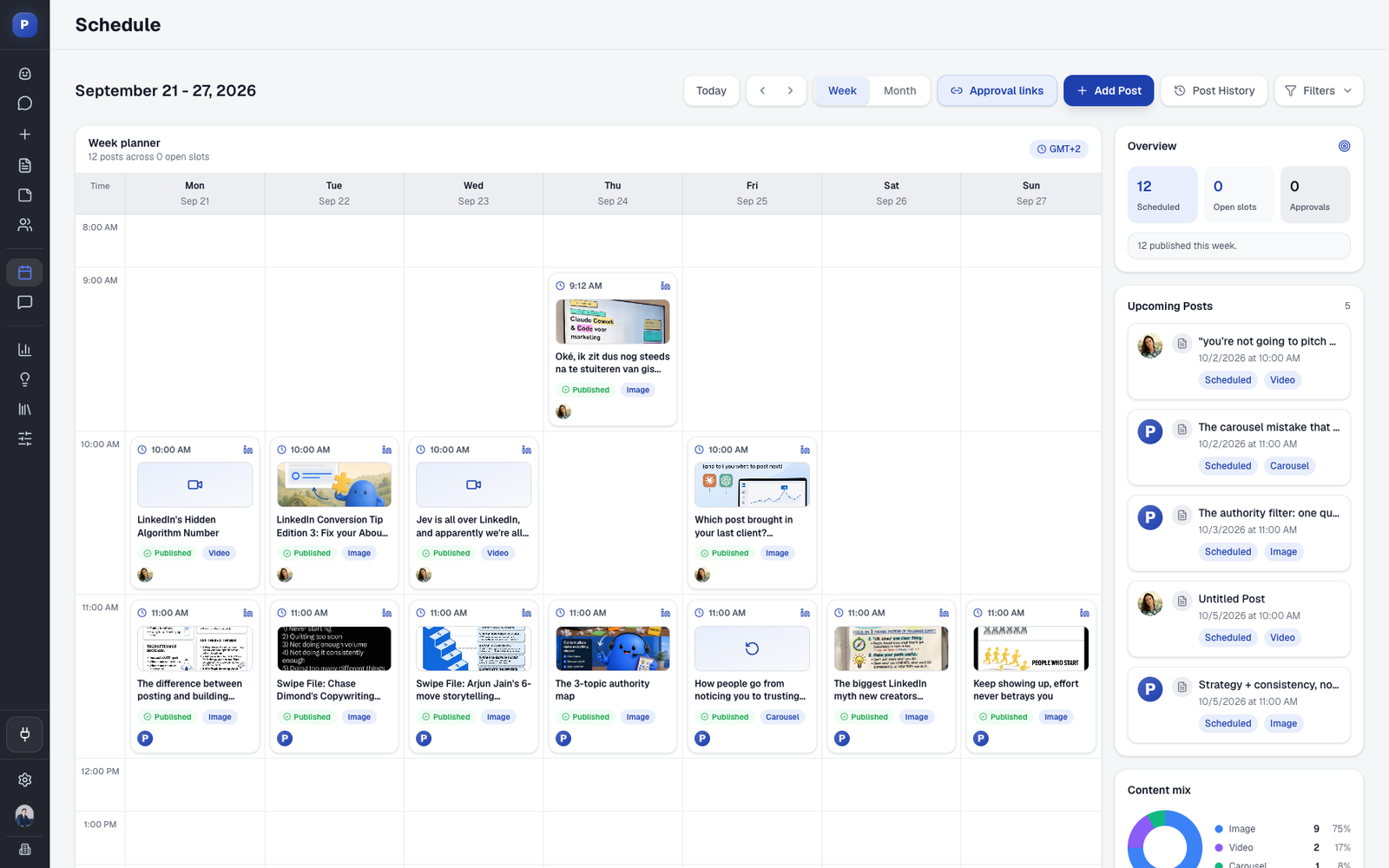
A LinkedIn post scheduler like Postiv puts every scheduled post in one calendar. You see what goes out this week, and so does your team.
Your profile, your Company Page and your team in one view. Schedule posts for your own profile, your Company Page and your teammates' profiles from the same calendar. Everyone can see what is planned, so two people don't post about the same thing on the same day, and nothing sits forgotten in a hidden queue.
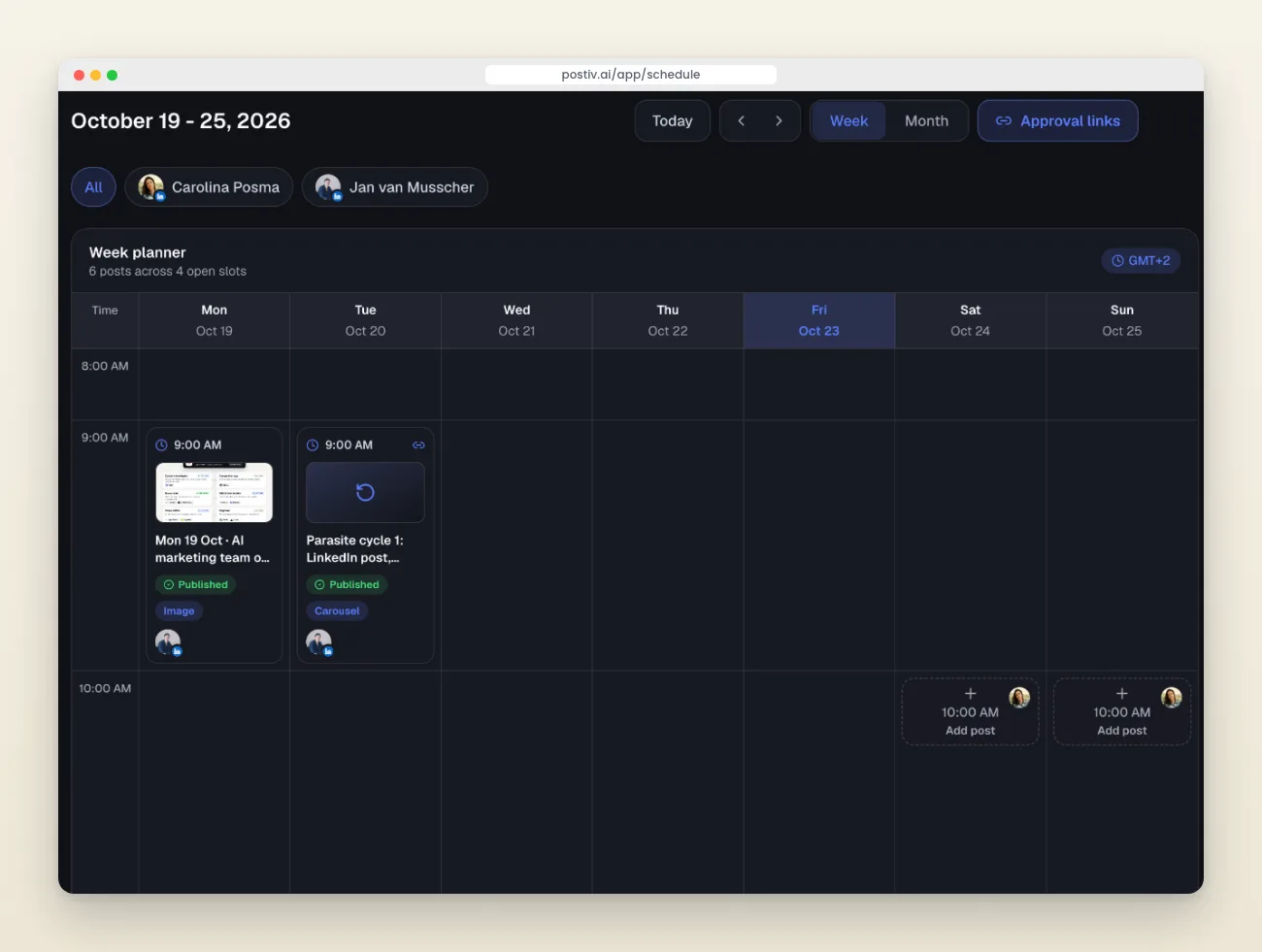
One calendar for your profile, your Company Page and your team.
Links in the first comment, posted for you. LinkedIn still shows posts with an outside link to fewer people, though less than it used to. The fix is to put the link in a comment. Postiv's Comment Plug does that for you: add up to five comments to a scheduled post, each with its own delay, and they go out automatically after the post publishes. A first comment also gets the conversation going.
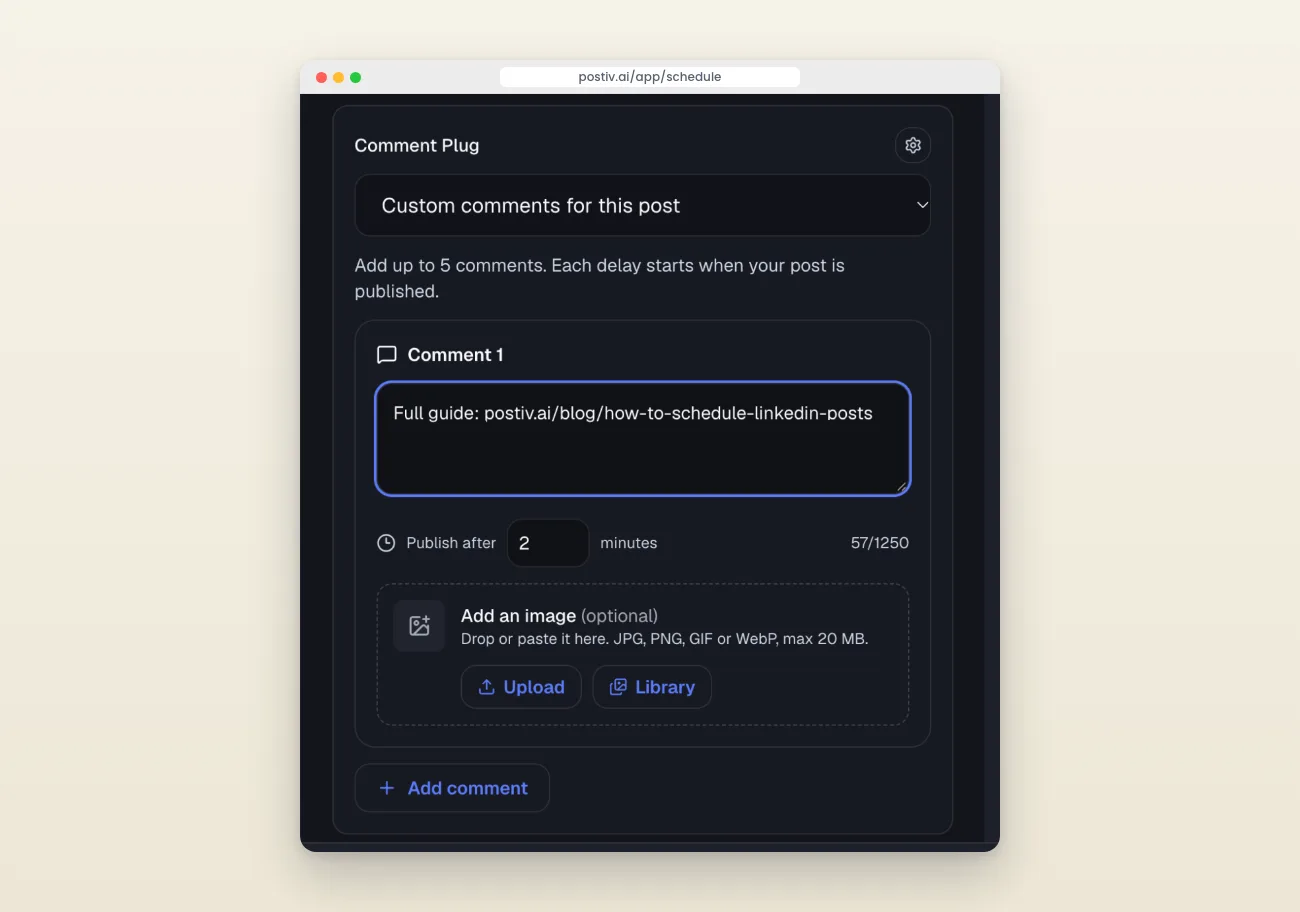
Comment Plug posts your link as a first comment, a few minutes after the post goes live.
Approvals before anything goes live. If a colleague, a manager or a client needs to sign off, send them a link. They can approve or comment without an account, and an approved post goes out at its scheduled time.
Help with what to post. Postiv also creates posts and carousels in your own voice, so the calendar doesn't run dry. If you need a structure for the month, start with our LinkedIn content calendar template.
Way 3: schedule LinkedIn posts from Claude or ChatGPT
The third way skips the scheduler's interface entirely. Connect Claude or ChatGPT to Postiv through the Postiv MCP, and your AI assistant can draft, schedule and check your LinkedIn posts for you.
- Connect the Postiv MCP to Claude or ChatGPT (setup guide).
- Ask it to turn an idea into a LinkedIn post draft. You get a preview in the chat that looks like the real post.
- Say when it should go out, for example "schedule it tomorrow at 4pm".
- The post appears in your Postiv calendar like any other scheduled post.
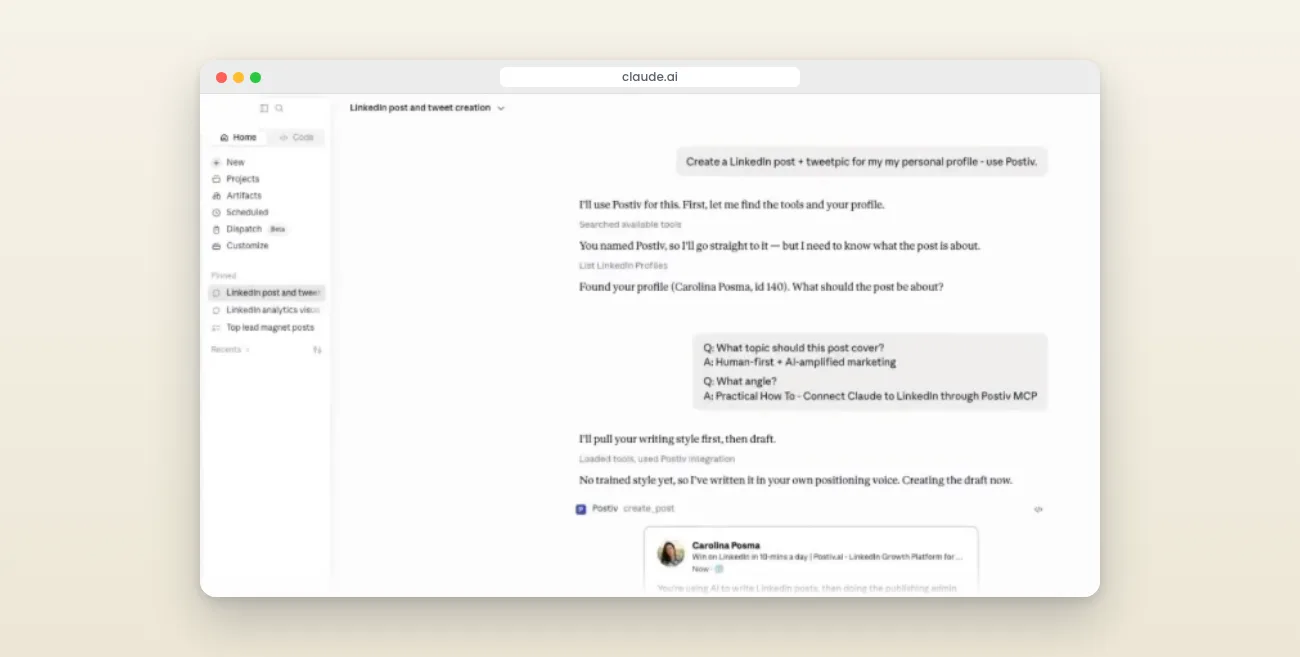
Claude drafting a LinkedIn post through the Postiv MCP.
This works best for ideas that come up while you are working. You're in a conversation with Claude, an idea sparks, and it is a scheduled draft before you close the tab. The step-by-step version is in our guide to scheduling LinkedIn posts with Claude.
Which way should you use?
| LinkedIn's scheduler | Content calendar (Postiv) | Claude or ChatGPT + MCP | |
|---|---|---|---|
| Best for | One post a week, one profile | Several posts a week, a Company Page, a team | Ideas that come up while you work |
| See all scheduled posts at a glance | No, they're hidden in a list | Yes, in one calendar | Yes, in the same calendar |
| Profile, Company Page and team in one place | No | Yes | Yes |
| Link in an automatic first comment | No | Yes | Yes |
| Approval before it goes live | No | Yes, by link | Yes, by link |
| Help writing the post | No | Yes, in your voice | Yes, in the chat |
If you post once or twice a week on one profile, LinkedIn's scheduler is enough. Once you post three or more times a week, or a Company Page or teammates are involved, the hidden queue becomes the problem and a calendar pays off. For a wider comparison of tools, see our roundup of the best LinkedIn scheduling tools, or the free LinkedIn post scheduler options.
Best practices for scheduling LinkedIn posts
- Batch write, then schedule. Write a week of posts in one sitting, then add the extra ones as ideas come. Monday works well for a weekly batch.
- Schedule for your audience's best times, not your free time. A good default is Tuesday to Thursday, 10 to 11 AM in your audience's time zone. Our breakdown of the best time to post on LinkedIn goes deeper.
- Leave room to react. Don't fill every slot. Keep a day open for something timely.
- Put links in the first comment. Keep the post itself link-free and let the comment carry the link.
- Stay around after it publishes. A scheduled post still needs you in the comments in the first hour. Block 10 to 15 minutes after each publish time.
Common mistakes to avoid
- Scheduling everything at the exact same time. Vary your times a little across the week.
- Scheduling against your own time zone. If your audience is elsewhere, "10 AM my time" can land in their evening.
- Queueing post types a Company Page can't schedule. Polls, events, multi-photo posts, reshares, jobs and service posts have to go out live.
- Never checking the queue. With the native scheduler, check the Scheduled tab every week. With a calendar, you see it anyway.
Start scheduling
Try the three ways in this order: schedule your next post with LinkedIn's clock icon, and switch to a calendar the moment you post more than once or twice a week or work with a team. Postiv's LinkedIn post scheduler puts your profile, your Company Page and your team in one calendar, posts your links as first comments, and works from Claude and ChatGPT too. Try it free for 7 days.
FAQs
Does LinkedIn allow you to schedule a post?
Yes. LinkedIn added native scheduling in 2023 for both personal profiles and Company Pages. Click the clock icon in the post composer, pick a date and time, then click Schedule. No third-party tool is required for basic scheduling.
How to schedule LinkedIn posts for free?
LinkedIn's built-in scheduler is free and needs no add-ons: open the composer, click the clock icon, choose a time and confirm. Third-party schedulers like Postiv add a content calendar, approvals and automatic first comments on top. We compare the free options in our free LinkedIn post scheduler guide.
How do I schedule a post on LinkedIn?
Click Start a post, write your content, then click the clock icon in the lower-right corner of the composer. Select a date and time between 10 minutes and 3 months from now, click Confirm, then click Schedule.
Do scheduled LinkedIn posts get less views?
No. LinkedIn treats scheduled posts the same as posts published in the moment; there's no penalty for scheduling ahead. Reach still depends on the content and the early engagement, not on whether a person or a scheduler pressed Post.
Where do I find my scheduled posts on LinkedIn?
Click Start a post, then the clock icon in the composer, and open the Scheduled tab next to Schedule post. It lists every post queued for your profile or Page.
Can I edit or reschedule a post after scheduling it on LinkedIn?
Yes. Open the Scheduled tab (Start a post, then the clock icon), pick the post you want to change, and edit the copy, change the time or delete it.
Can I schedule LinkedIn posts with ChatGPT or Claude?
Yes. Connect Claude or ChatGPT to a scheduler through an MCP server, such as the Postiv MCP. You draft the post in the chat, see a LinkedIn-style preview, then ask the assistant to schedule it for a date and time. It lands in your content calendar like any other post.
How do I add a link to a LinkedIn post without losing reach?
Put the link in a comment instead of the post. LinkedIn still shows posts with an outside link to fewer people, though less than it used to. A scheduler like Postiv can post that comment for you automatically a few minutes after the post goes live.